Account & Settings
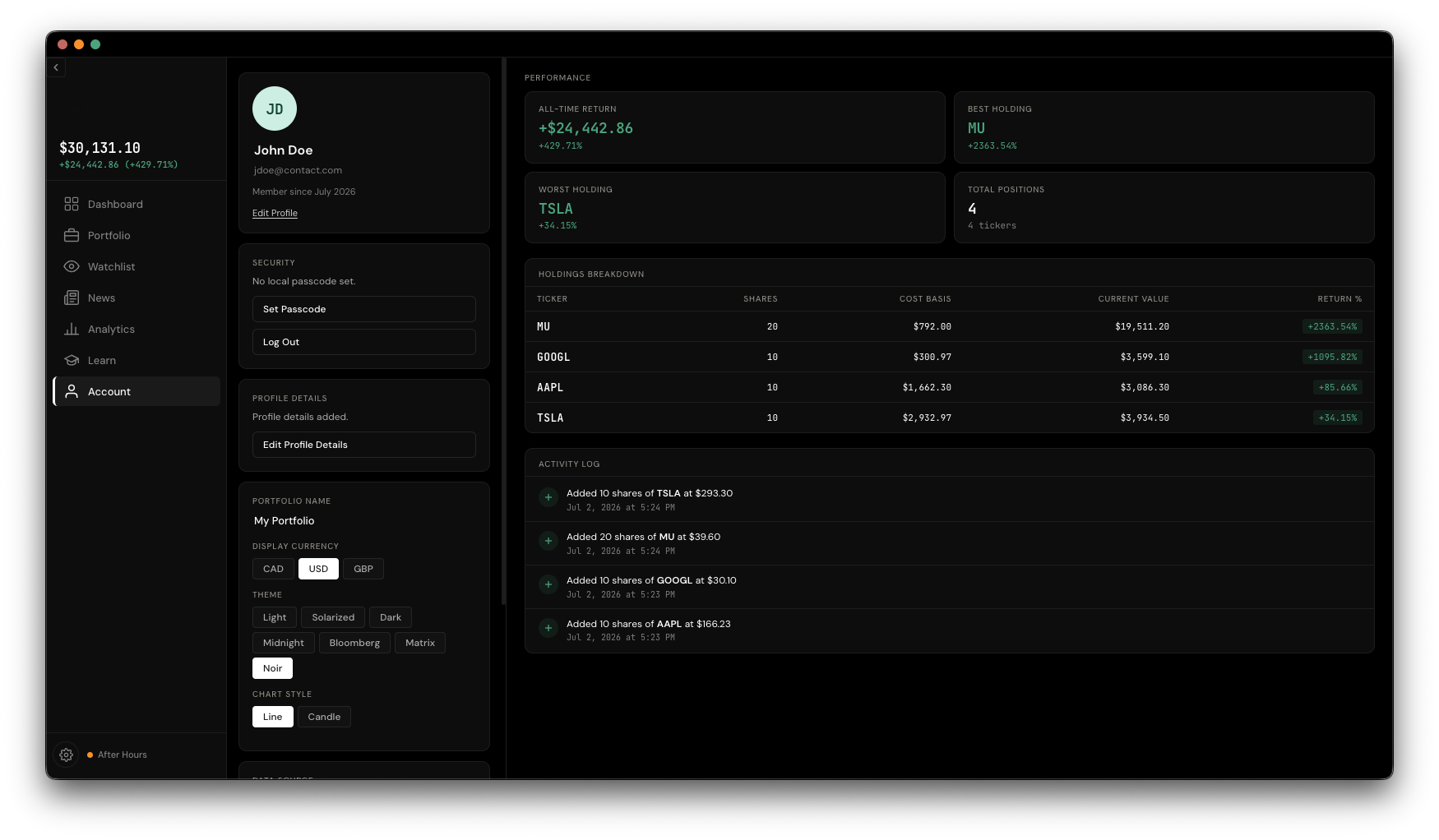
The Account page is your personal hub — profile, security, and a full breakdown of your performance. The Settings modal (the gear icon in the sidebar) holds the app-wide preferences. Some controls, like currency and theme, live in both places for convenience — changing one updates the other.
The Profile card shows an avatar built from your initials, your display name and email (click either to edit inline), and the date you joined.
The Security card shows whether a local passcode is set. Click Set/Change Passcode to add or update one, or Log Out to lock the app back to the login screen.
If you skipped optional fields during signup — contact info, address, recovery keyword, investor profile — the Profile Details card shows how complete things are and offers Complete Profile or Edit Profile Details to fill in or change them.
Set a name for your portfolio, and pick your Currency (CAD, USD, or GBP), Theme (8 options, including light, dark, and a few stylized looks), and Chart Style (line or candle) — all applied instantly across the app.
The right column is entirely read-only: an all-time performance summary, your best and worst holding, a full holdings breakdown table, and a scrollable log of every add and remove you've made.
A status card confirms your market data connection and shows the last time it synced, with a manual Sync Now button if you want to refresh on demand rather than waiting for the next app launch.
Two destructive actions live here, both behind a confirmation step:
Click the gear icon at the bottom of the sidebar for app-wide preferences: